New rolling release: Breadcrumb navigation and search shortcut
In everyday life, collaboration often starts with something very simple: someone shares a file, a document is opened and the information is immediately available. But in which folder was the file actually stored? Which space does it belong to? And how do you get from there without having to click through several levels? With the current rolling release, OpenCloud is improving breadcrumb navigation and adding a shortcut for global searches.

More orientation in folder structures
Where is the file that was shared with you actually located and how do you get to the parent folder? This is exactly where the breadcrumb navigation helps.
The breadcrumb navigation in OpenCloud has been revised to make it easier for users to find their way around more complex directory structures. The three-dot menu within the breadcrumb is now clickable and allows access to previously visited folders. This makes navigation easier to follow. If you are several levels deep in a folder structure, you can go back one step at a time. This makes orientation easier, especially in larger Spaces or extensive project folders.
Global search via shortcut
Anyone who works a lot with shortcuts knows how much easier they make everyday life: many paths are simply faster using the keyboard than the mouse. The global search in OpenCloud can now also be called up using a shortcut. The search bar can be focused directly using the shortcut keys s or / without users having to click in the search field with the mouse first.
As soon as the search is active, the input field is also highlighted visually. This makes it clear at a glance that the focus is on the search. This improves usability and ensures greater clarity in the interface.
Compare documents in Collabora Online
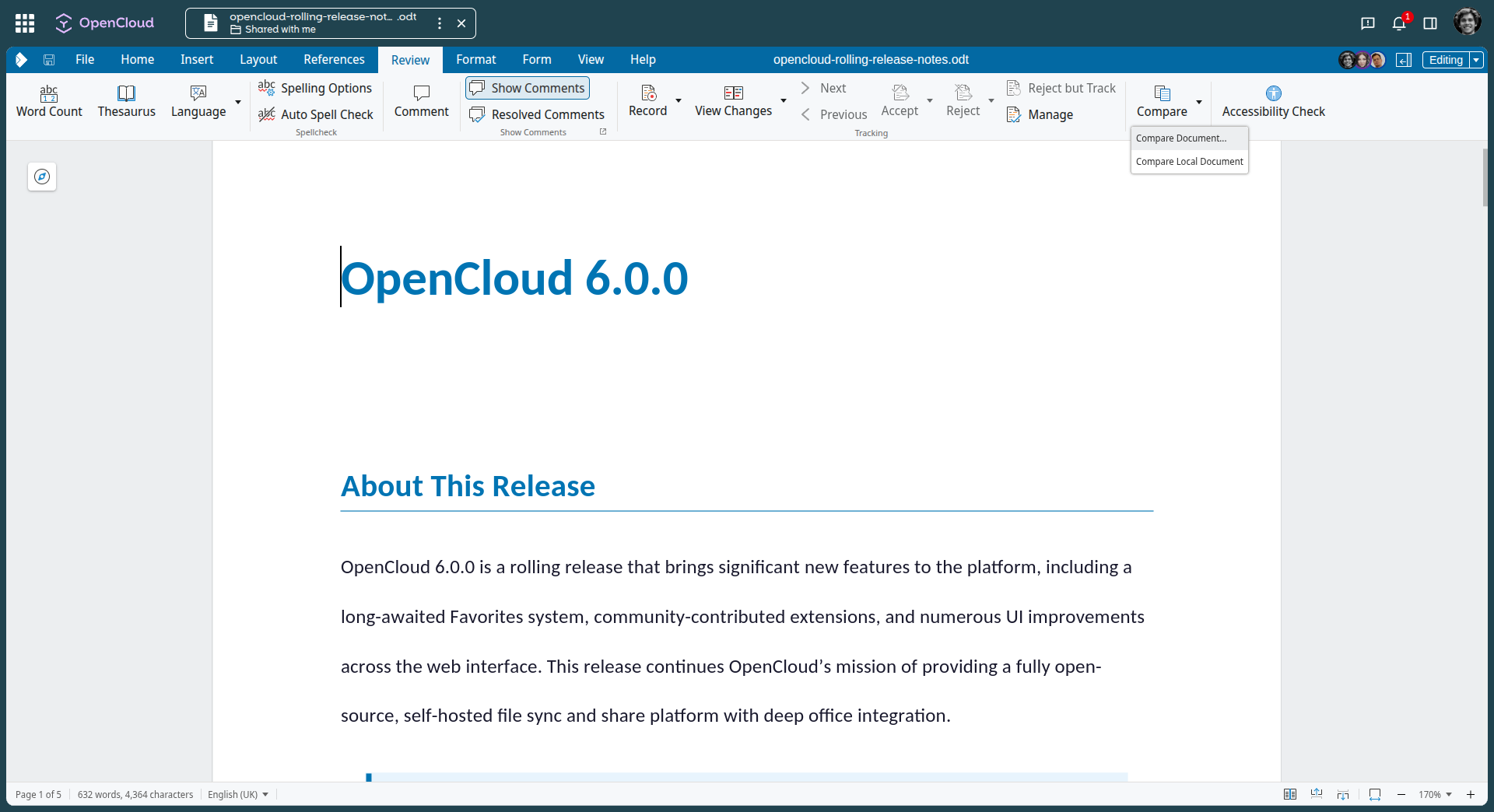
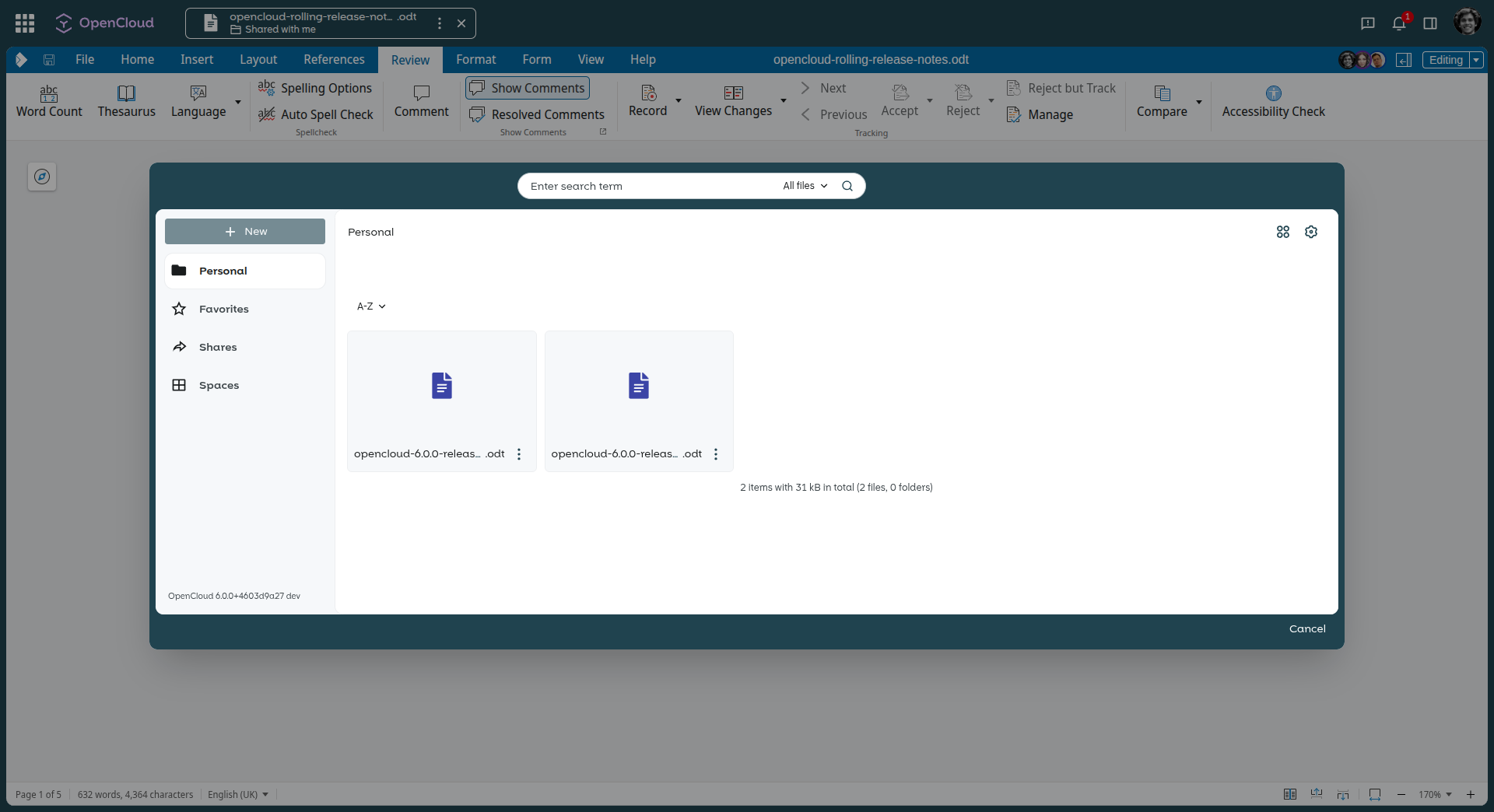
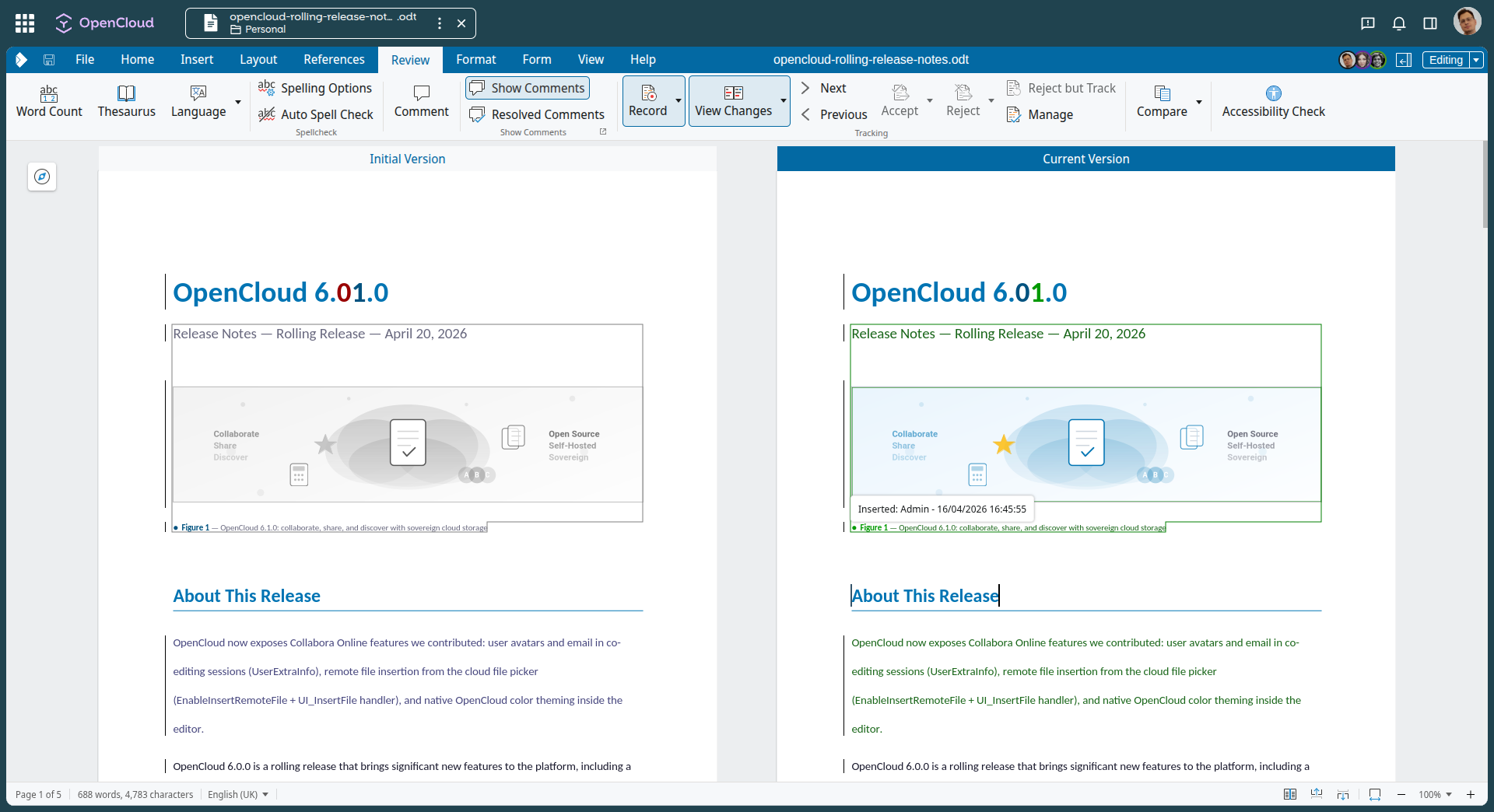
With the current rolling release, OpenCloud is also adopting a new feature from our partner Collabora. In Collabora Online, text documents can now be compared more easily. Differences between two versions are displayed clearly, even if changes were not tracked. A comparison view helps users identify additions and deletions more easily. Anyone who wants to review a change in more detail can highlight the corresponding passage on both sides by hovering over a tracked change. This makes differences in documents easier to understand.
→ Find out more about the rolling release.


